
How to Configure Alerts
An alert tells VL what to watch for: a record trade, a big closing print, a cluster or cluster bomb, or a record day of institutional volume, in the tickers you choose. When something matches, VL emails you and adds it to your alert log. This guide covers setting alerts up. To read the alerts you get, see How to Read Alerts.
Your Alert List
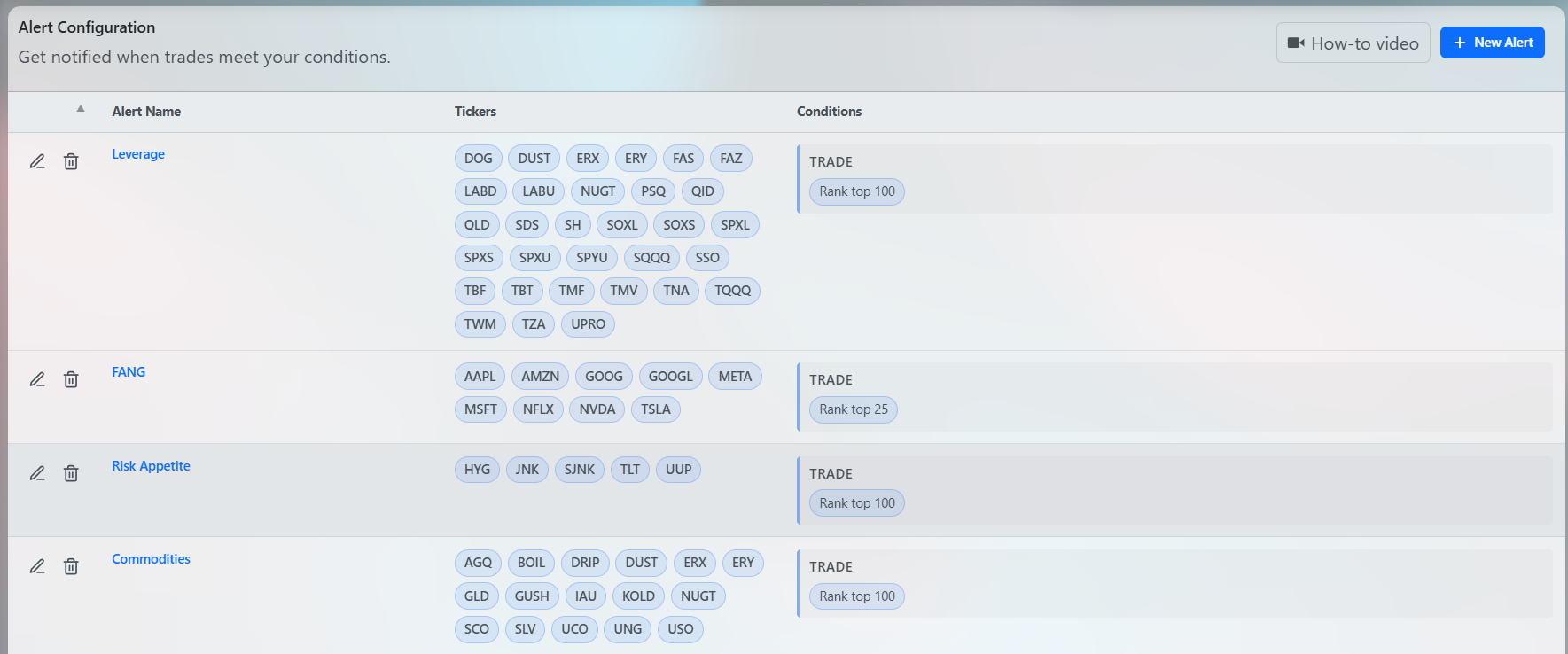
The Alert Configuration page lists every alert you have saved, one per row.
Buttons
- New Alert: opens a blank alert.
- How-to video: a short video on setting up alerts, on YouTube.
- ? icon: opens this guide.
With no alerts saved yet, the list reads "No alerts yet. Click New Alert to create one."
Creating or Editing an Alert
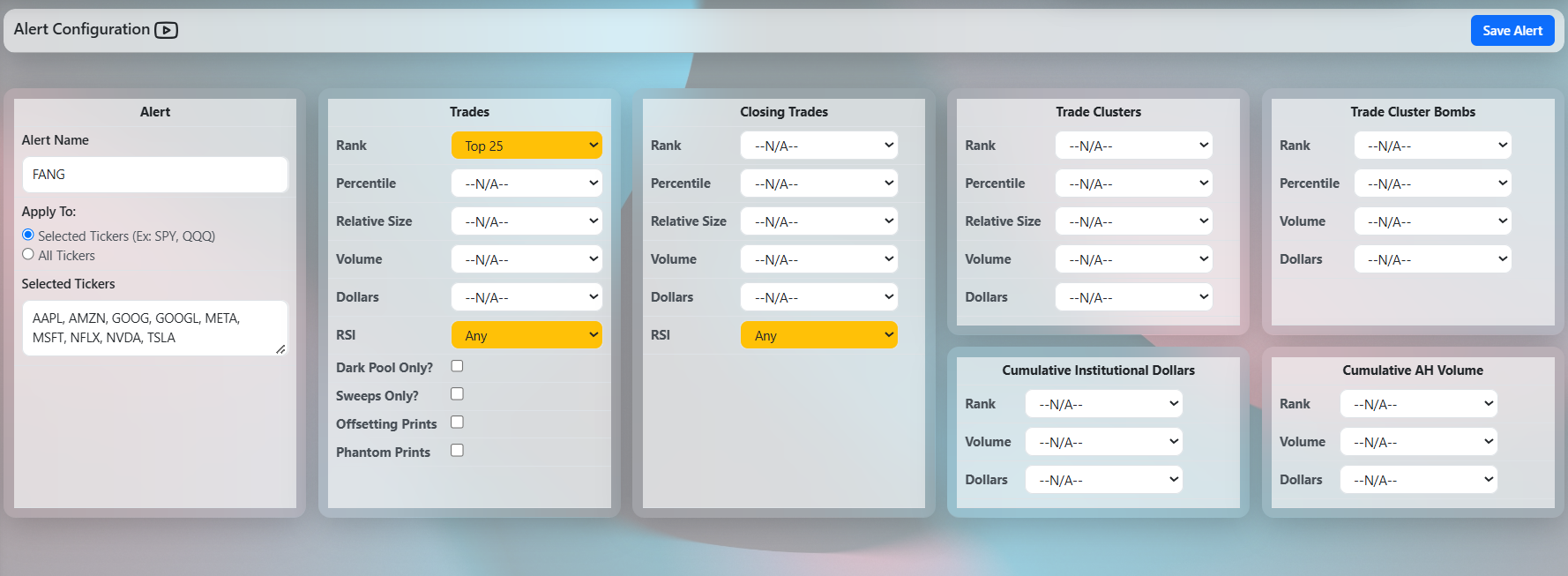
The page has seven boxes. The first names the alert and picks its tickers. The other six each watch for one kind of activity.
- Save Alert (top right): saves the alert and takes you back to your list. If something is wrong, the page stays open and shows the problem in red.
- Video icon next to the title: the same how-to video as on the list.
- Yellow dropdowns: when you open a saved alert, every dropdown that is set is shaded yellow, so you can see its conditions at a glance.
- --N/A-- in a dropdown means "not used". Leave a box all at --N/A-- and it never fires.
The Alert Box
Which tickers are kept
- Your plan: tickers your subscription doesn't cover are dropped when you save. Without an active subscription, only VL's free tickers are kept.
- Unknown tickers: symbols VL doesn't track (typos, delisted names) are dropped when at least one other ticker you typed can be used.
- None usable: if none of the tickers you typed can be used, the alert is not saved. The page stays open and shows, in red under the ticker box, "None of these tickers can be used:" followed by the tickers it rejected. Fix the spelling, remove the tickers your plan doesn't cover, or pick All Tickers.Example: typing ZZZZ, QQQQ shows "None of these tickers can be used: ZZZZ, QQQQ."
- Empty box: leaving the ticker box empty is the same as picking All Tickers.
How Conditions Combine
- Inside one box, every setting must match. Trades Rank Top 10 plus Dark Pool Only means a top 10 trade that is also a dark pool trade.
- Each box is checked on its own. If you set both Trades and Trade Clusters, a matching trade alerts you and a matching cluster alerts you, separately.
- Unused settings are ignored. Anything at --N/A--, Any, or unticked plays no part.
Example: Trades Rank Top 10 and Dollars >= $50,000,000. A $60 million trade ranked #4 alerts you. A $60 million trade ranked #40 doesn't, and nor does a #4 trade worth $20 million.
More settings in a box means fewer, rarer alerts. Fewer settings means more alerts.
The Size Settings
Most boxes share the same size settings. Each one compares against the ticker's own history, except Volume and Dollars, which are fixed amounts.
Rank, Percentile and Relative Size scale to the ticker: a top 10 trade in a small stock may be a few million dollars, while in SPY it may be billions. Volume and Dollars don't, so they suit large names best.
The Trades Box
Watches each large trade as it prints during the day.
RSI choices
RSI is overbought at 80 or higher and oversold at 20 or lower. Hourly uses the hourly RSI at the time of the trade. Daily uses the daily RSI.
- RSI Overbought (Hourly), (Daily) or (Any)
- RSI Oversold (Hourly), (Daily) or (Any)
- RSI Overbought or Oversold (Any)
The (Any) choices mean either timeframe: hourly or daily RSI is enough. RSI Overbought (Any) fires when hourly RSI or daily RSI is 80 or higher. RSI Overbought or Oversold (Any) fires when either timeframe is overbought or oversold. RSI still counts as one setting, so the trade must also match the box's other settings.
Tip: the check boxes and RSI narrow the box down. Ticking Dark Pool Only with nothing else set alerts you on every dark pool trade in your tickers, which can be a lot. Pair it with a Rank or Dollars setting.
The Closing Trades Box
Watches the large trades that print at the market close. These are checked after 4:00 PM ET, so closing trade alerts arrive in the evening.
- Rank: Top 1, 3, 5, 10, 25, 50 or 100.
- Percentile: >= 97%, 98%, 99% or = 100%.
- Relative Size: >= 5x, 10x, 25x, 50x or 100x Avg.
- Volume: >= 1M, 2M, 5M or 10M shares.
- Dollars: >= $1M, $10M, $50M, $100M, $200M, $500M or $1B.
- RSI: the same choices as the Trades box, set separately. The Closing Trades RSI setting applies only to closing trades, and the Trades RSI setting doesn't affect them.
Closing prints are often the biggest trades of the day in a ticker, because funds rebalance at the close. A Rank setting is usually the most useful filter here.
Clusters and Cluster Bombs
Trade Clusters
Watches trade clusters: the large trades in one ticker on the same day within 10 cents of each other, added up. See How to Read Trade Clusters.
- Rank: Top 1, 3, 5, 10, 25, 50 or 100.
- Percentile: >= 97%, 98%, 99% or = 100%.
- Relative Size: >= 5x, 10x, 25x, 50x or 100x Avg.
- Volume: >= 1M, 2M, 5M or 10M shares.
- Dollars: >= $5M, $20M, $50M, $100M, $200M, $500M or $1B.
Trade Cluster Bombs
Watches cluster bombs. See How to Read Trade Cluster Bombs. The settings are the same as Trade Clusters, without Relative Size.
- Rank: Top 1, 3, 5, 10, 25, 50 or 100.
- Percentile: >= 97%, 98%, 99% or = 100%.
- Volume: >= 1M, 2M, 5M or 10M shares.
- Dollars: >= $5M, $20M, $50M, $100M, $200M, $500M or $1B.
Cumulative Volume Boxes
These two boxes don't look at single trades. They add up the day's large institutional trades in each ticker and alert you when the day as a whole is big. You get at most one alert of each kind per ticker per day.
Cumulative Institutional Dollars
The day's total institutional volume, as on the Institutional Volume page.
- Rank: the day's institutional dollars against every other day in the ticker's history. Top 1, 3, 10, 25, 50 or 100.
- Volume: >= 1M, 2M, 5M or 10M shares for the day.
- Dollars: >= $100M, $200M, $500M or $1B for the day.
Cumulative AH Volume
The same, counting only after-hours trades, as on the AH Institutional Volume page. Checked after 4:00 PM ET. The choices are the same as Cumulative Institutional Dollars.
Note: a total grows during the day, so a day can cross your setting in the afternoon even if it was quiet in the morning.
How Alerts Are Delivered
- By email to the address on your VL account. The subject names the kind of alert and the ticker, e.g. "VL Alert (Trade Rank) : NVDA", with the details and chart links inside.
- On the site: alerts also appear in your alert logs, and the alert bell shows the session's trade, cluster and cluster bomb alerts. See How to Read Alerts.
- When: VL checks for new matches about once a minute on weekdays, from 4:00 AM to 8:00 PM ET. Nothing is sent on weekends.
- From the time you save: an alert only fires on trades that print after you last saved it. Saving an edit starts it fresh.
- Once per trade: each trade alerts you once, even if it matches more than one of your alerts.
- Daily limit: up to 50 alert emails per day. After that, no more emails go out that day.
- Cancelled trades never trigger an alert.
- Your subscription: alerts run while your subscription is active. A cancelled subscription keeps sending alerts until its paid period ends.
Worked Examples
Good to Know
- How many alerts: you can save several alerts, each with its own tickers and conditions. Splitting ideas into separate, clearly named alerts makes your emails easier to read.
- Check after saving: the list shows the tickers and conditions that were actually saved. Tickers you typed that VL doesn't track or your plan doesn't cover are left off; if none of them can be used, the alert isn't saved and the page tells you which tickers were rejected.
- Editing: open the alert, change it, and click Save Alert. To switch a condition off, set it back to --N/A-- or Any, or untick it.
- Deleting: the trash can on the list. You will be asked to confirm.
- Only you can see, edit or delete your alerts.